[KMP] 01 - Quick Start
Environment Setup
Choosing an IDE
Although I personally use Android Studio, I’ll be using IntelliJ IDEA here. If you don’t have a license, I’d suggest sticking with the free Android Studio.
JetBrains Toolbox App
I use this tool to manage JetBrains IDEs, which allows for unified management of installations and updates. 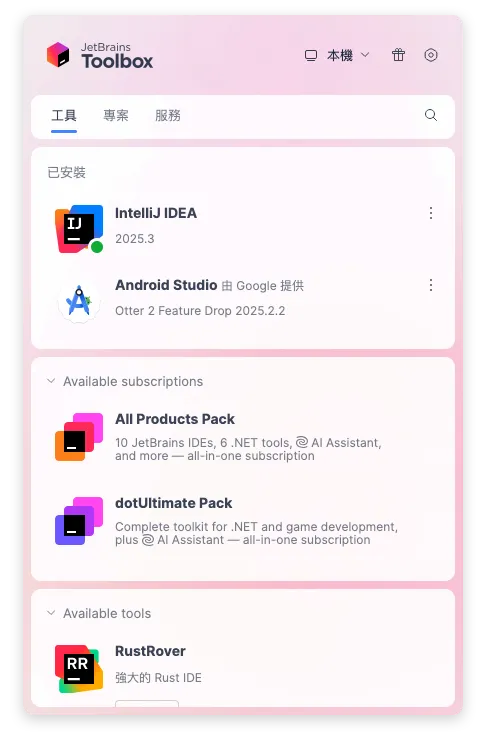
Installing Plugins
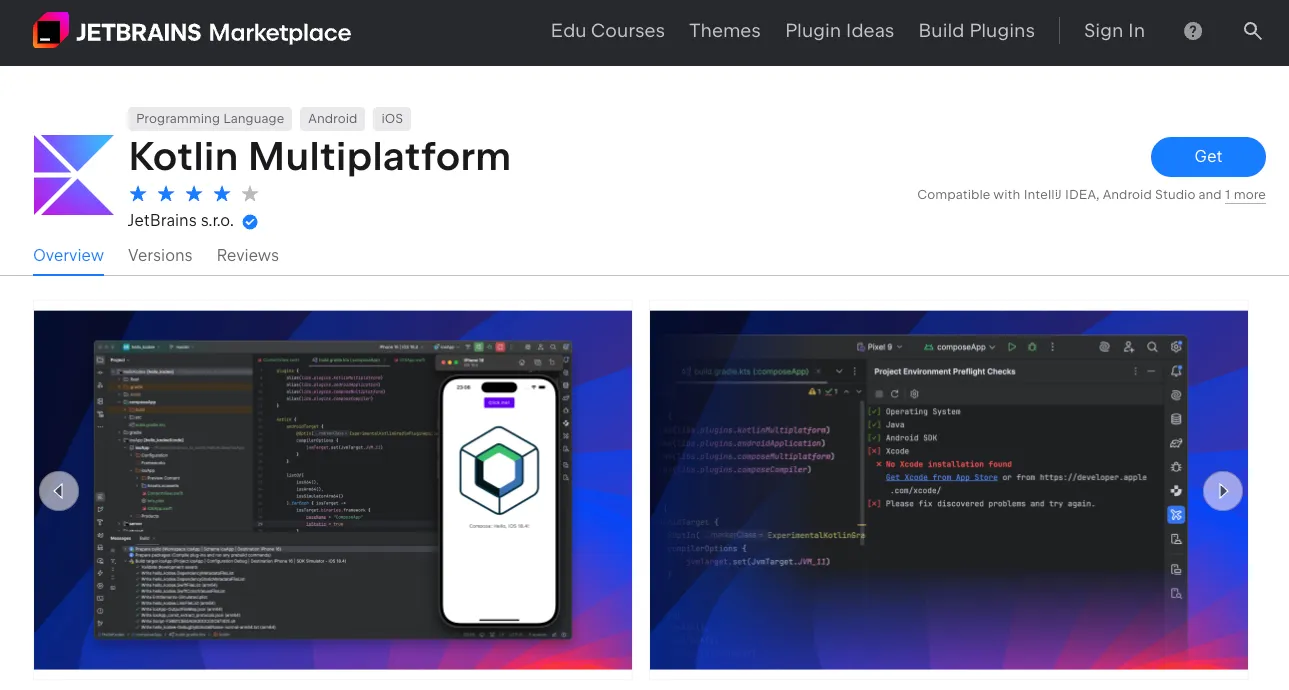
Whether installing independently or via the JetBrains Toolbox App, you need to install Kotlin Multiplatform.
Environment Variables
If your computer doesn’t yet have the ANDROID_HOME environment variable, you need to set the path for the Android SDK.
Xcode
If your project includes iOS support, you’ll need a macOS machine with Xcode installed. The IDE will run Xcode in the background to build the iOS framework.
You must also launch Xcode at least once to let it complete its initial configuration.
Creating a Project
Here, I will use IntelliJ IDEA to create the project.
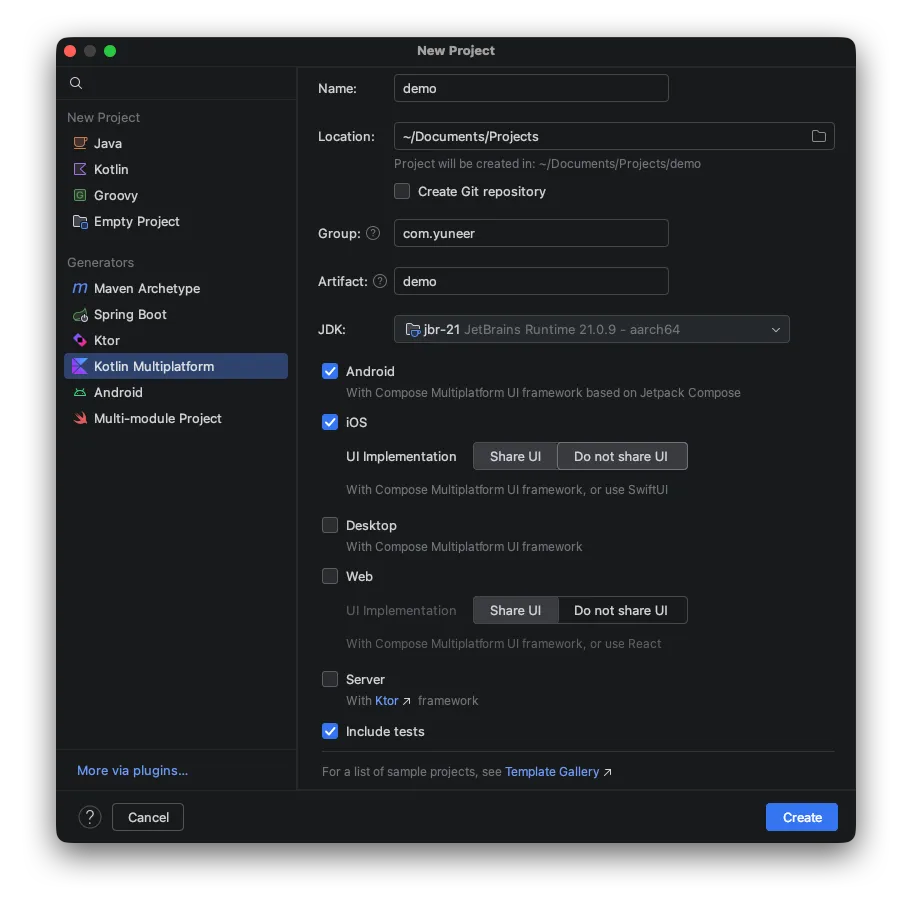
Project configuration is quite simple: check the JDK version, select the platforms to include, and decide whether to use Compose for Shared UI on iOS or use native SwiftUI.
Preflight Checks
As long as the Kotlin Multiplatform Plugin is installed, Preflight Checks will be available. After creating the project and opening the IDE, you should see the following screen.
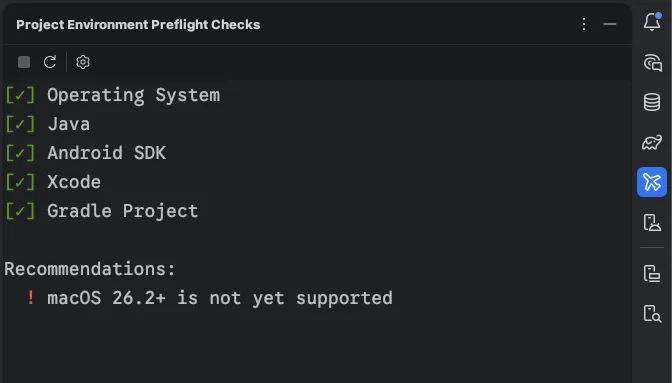
If any checks in the top section fail, it will provide explanation hints.
Run Sample app
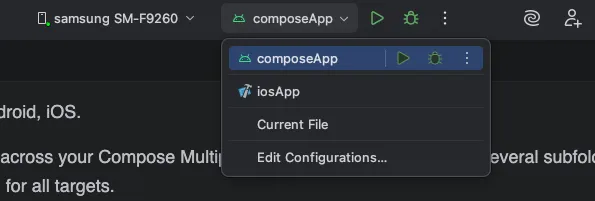
Next, you can run the Sample app using the Run button at the top of the IDE.