[KMP] 02 - How to Import Firebase SDK
KMP SDK Types
In KMP projects, there are two ways to import SDKs:
- The official SDK supports Kotlin Multiplatform.
- The SDK only supports specific native platforms.
This article introduces the second scenario. For example, Firebase only provides native SDKs for Android and iOS. This approach requires importing the SDK separately in the Android and iOS projects.
How to Import SDK
Android Platform
It is relatively simple on Android, as it is very similar to the original Android development process.
SDK Version
First, we need to decide which version of the Firebase SDK to install. We can check the Firebase official website. The article mentions that to install the Firebase SDK, you need to install the Google Gradle Plugin first, so there will be two SDK versions in total:
- Google Gradle Plugin - Assists in accessing
google-services.json - Firebase Bom SDK - Manages Firebase SDK versions
If there are no special requirements, just choose the latest version available.
Gradle Version Catalog
New versions of Gradle recommend managing all SDK versions in a single toml file to avoid version inconsistency issues. Find gradle/libs.versions.toml under the KMP project and add the Firebase SDK versions.
[versions]
...
google-services = "4.4.4"
firebase-bom = "34.7.0"

[libraries]
...

# Firebase SDK, add the libs you need
firebase-bom = { module = "com.google.firebase:firebase-bom", version.ref = "firebase-bom" }
firebase-analytics = { module = "com.google.firebase:firebase-analytics" }
firebase-remote-config = { module = "com.google.firebase:firebase-config" }

[plugins]
...
google-services = { id = "com.google.gms.google-services", version.ref = "google-services" }

# If you feel there are too many libs to add later, you can bind them as a bundle here, so you only need to modify this part for future expansions
[bundles]
...
firebase-bundle = [
    "firebase-analytics",
    "firebase-remote-config"
]
After defining the versions, remember to click Gradle Sync Changes so that Gradle re-parses the versions. 
Gradle Settings
Open build.gradle.kts under the project root and add Google Gradle Plugin under the plugins block.
plugins {
    ...
    alias(libs.plugins.google.services) apply false
}
Open build.gradle.kts in the composeApp module and add Google Gradle Plugin under the plugins block.
plugins {
    ...
    alias(libs.plugins.google.services)
}
Open build.gradle.kts in the shared module and add androidMain under the sourceSets block.
sourceSets {
    ...

    androidMain.dependencies {
        implementation(project.dependencies.platform(libs.firebase.bom))
        implementation(libs.bundles.firebase.bundle)
    }
}
iOS Platform
Open Xcode, open the project file at this path: iosApp/iosApp.xcodeproj, right-click on the project and select Add Package Dependencies. 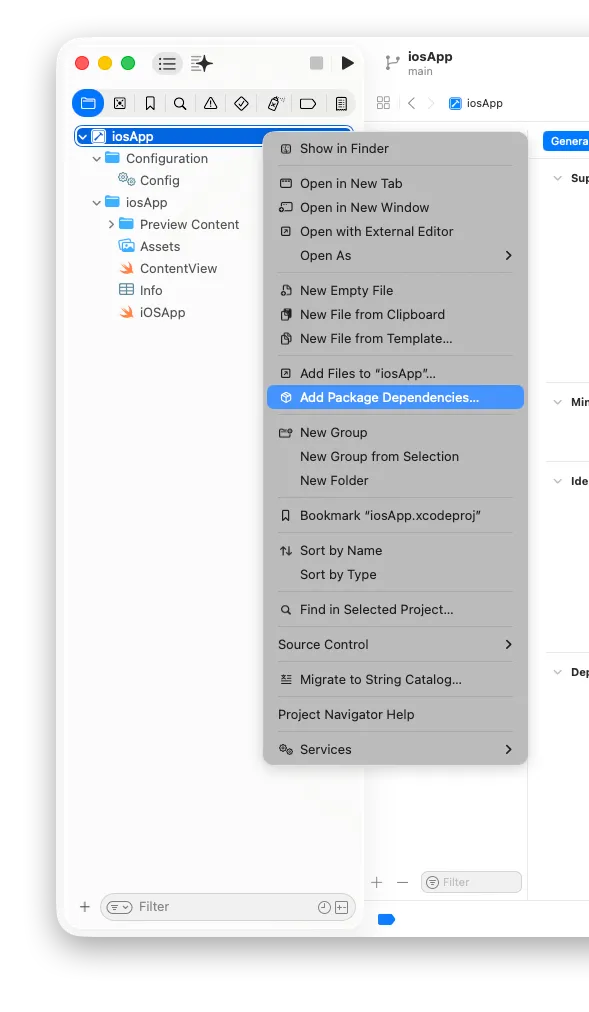
Enter the firebase github URL to quickly find the firebase sdk, then directly click Add Package.
NOTE
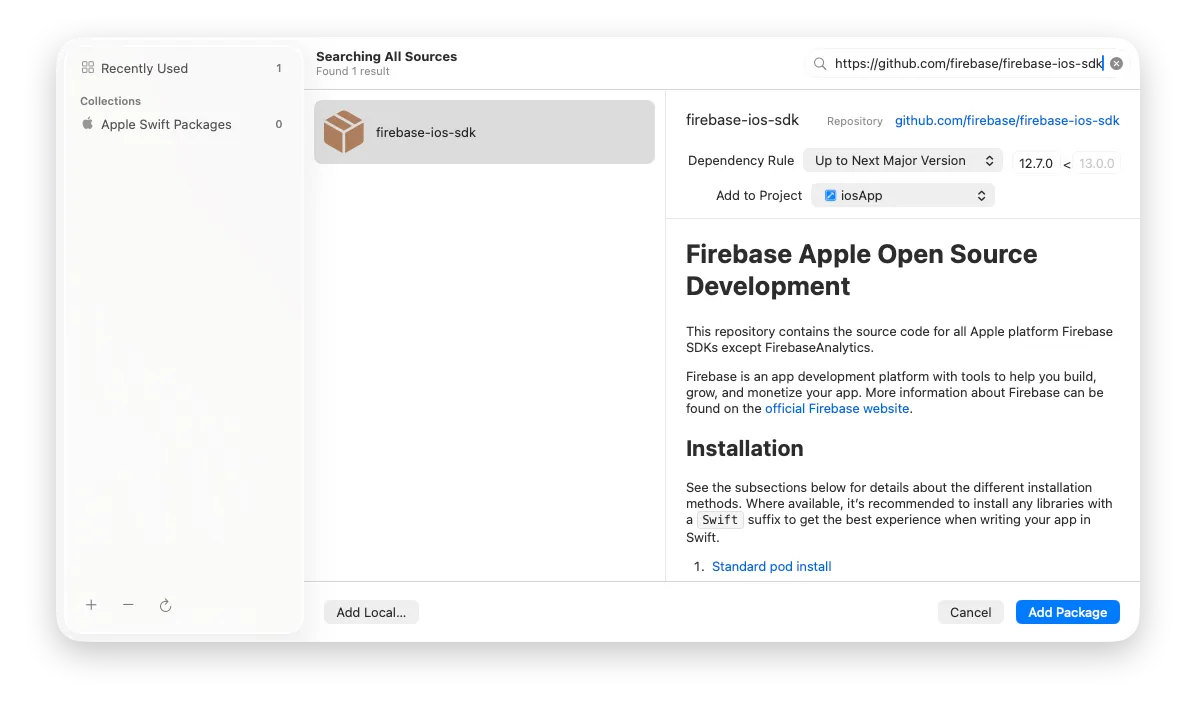
Xcode will Checkout the SDK and verify it. 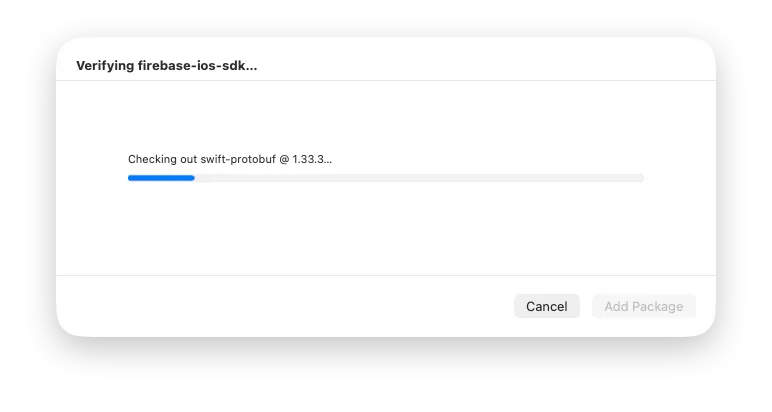
After checking out completely, it asks what products you need to add. Select ios App in the Add to Target field for the ones you want to add, then click Add Package. 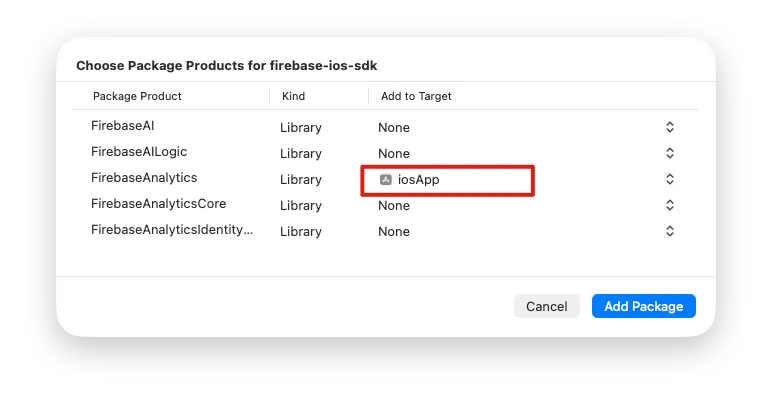
After adding everything, you can close Xcode and go back to IntelliJ IDEA. You might see an error.
Swift Package dependencies resolution failed with exit code 74:

2025-12-16 14:41:58.260 xcodebuild[32582:1401171] Writing error result bundle to /var/folders/3_/g4pw0jys2dd8w_h7n6bqbsxc0000gq/T/ResultBundle_2025-16-12_14-41-0058.xcresult

xcodebuild: error: Could not resolve package dependencies:

  Couldn’t get revision ‘12.7.0^{commit}’:
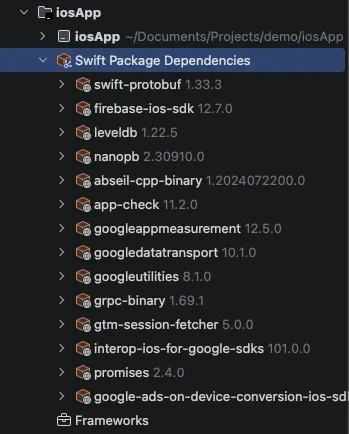
Just use the Sync Gradle With Swift Package Manager at the top right of the IDE to solve it. After completion, you can see the SDK installed by Swift Package Manager under iosApp on the left. 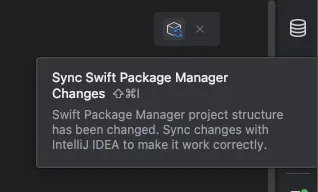
Verification
Compared to Android, to ensure that the installation is truly complete on iOS, let’s test if Firebase can be initialized correctly. I assume everyone has already completed the basic Firebase setup on the iOS platform.
We verify this by opening iOSApp.swift in iosApp directly in JetBrains IntelliJ IDEA. Yes, we can write Swift directly here. Adjust the Code as follows:
import SwiftUI
import FirebaseCore

@main
struct iOSApp: App {

    init() {
        FirebaseApp.configure()
    }

    var body: some Scene {
        WindowGroup {
            ContentView()
        }
    }
}
After completion, we directly select iosAPP to compile it. Regardless of whether there are errors, it means the Firebase SDK has been installed. 
Like mine, the following error appeared:
*** Terminating app due to uncaught exception 'com.firebase.core', reason: '`FirebaseApp.configure()` could not find a valid GoogleService-Info.plist in your project. Please download one from https://console.firebase.google.com/.'This means the Firebase SDK has been installed, just that GoogleService-Info.plist has not been configured yet.